Hello
!
Read the following section to learn more about this service before you sign up.
What is MyANECO service?
Welcome to MyANECO. It is your personal online portal that provides 24/7 access to important details about your billing account. All you need to do is sign up and you can begin viewing the details of your ANECO billing account.
No need to visit our branches or calls. Have 24/7 access through MyANECO. It only takes a few minutes to complete your registration.
Phishing and online scam
When you register in MyANECO service, it is our utmost priority to protect your privacy and personal information with SSL encryption. When signing in or registering in MyANECO make sure that your address bar is showing the padlock Secure sign
and the address is https://my.aneco.ph , using secure HTTPS protocol.

If you are using a public computer or in a public internet cafe to sign in or register in MyANECO, make sure to sign out and close the browser upon leaving the station. It is much better to use the Incognito feature of a browser when in public computer.
Register in MyANECO
When you register in MyANECO make sure you agree with the policy and terms set forth by ANECO, Inc.
How to Register in MyANECO service?
Proceed to registration form in the main page of MyANECO login
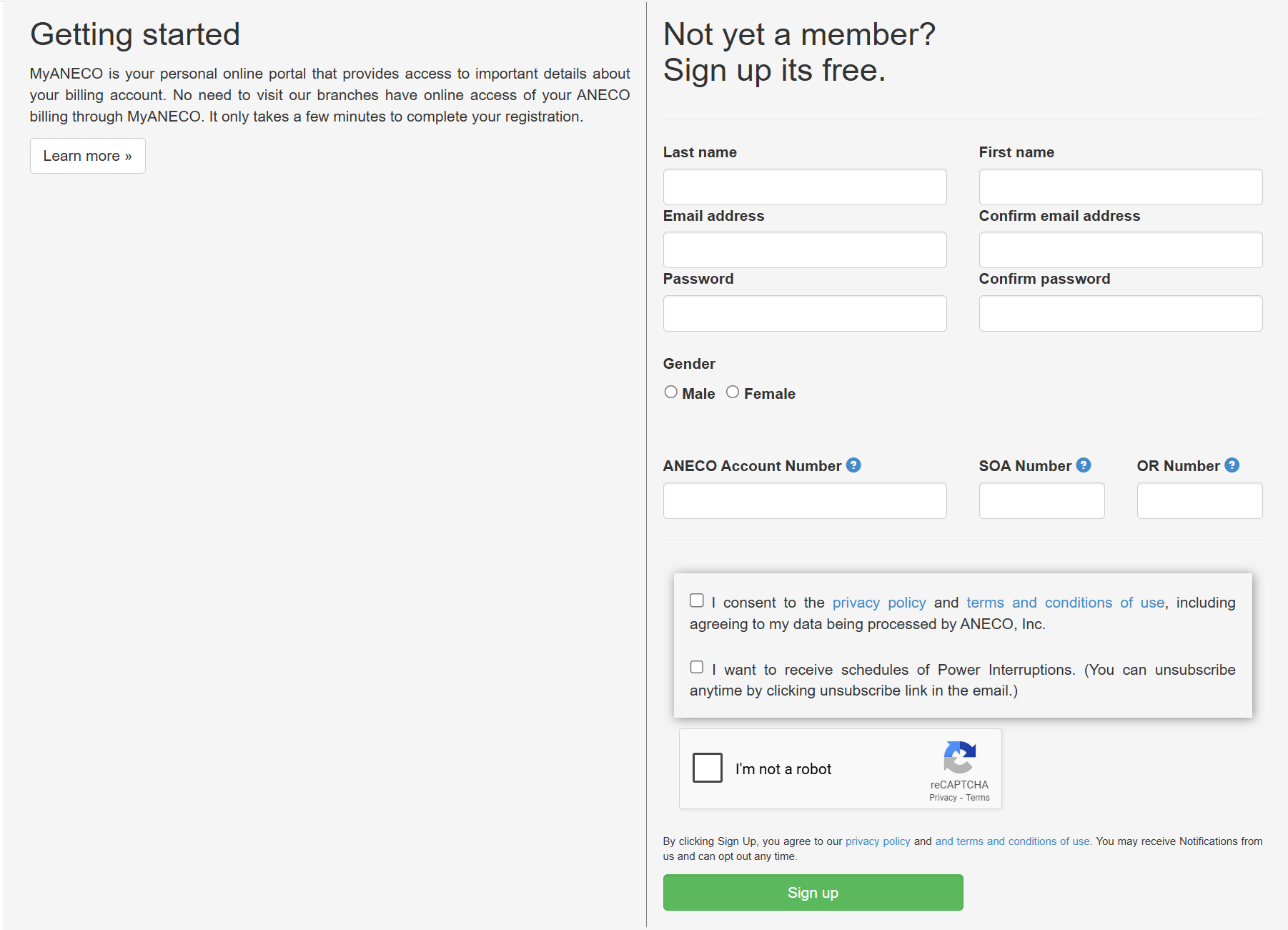
- Fill up your Last name, First name, Email address. Make sure your email address is your working email address. MyANECO will send an activation email to verify that
the registration email is correct and it is also use when recovering a password in instances that you forget your password.
- Provide a strong password. If you're not sure how to setup a strong one read the password tips.
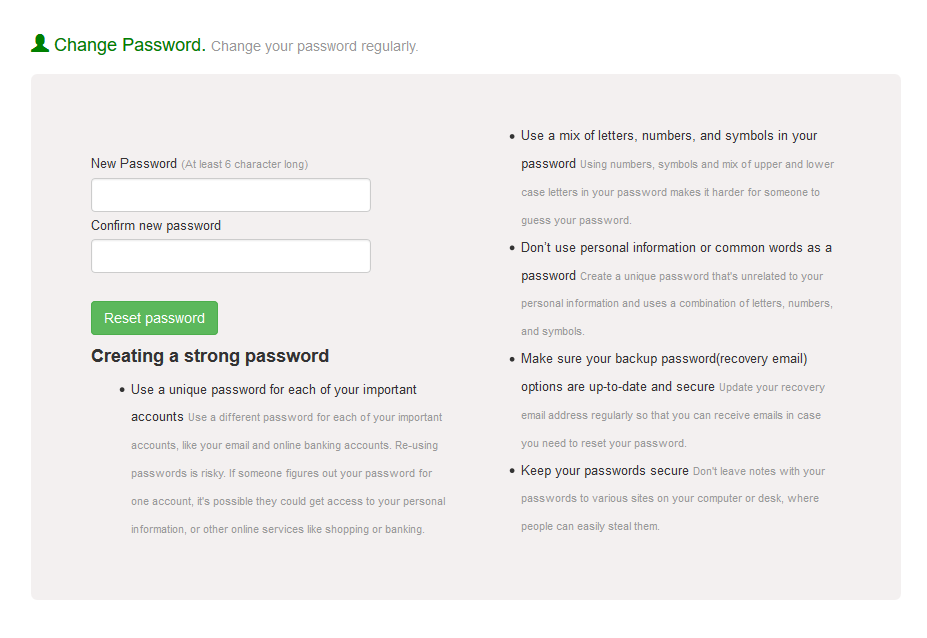
Creating a strong password
- Use a unique password for each of your important accounts
Use a different password for each of your important accounts, like your email and online banking accounts. Re-using passwords is risky. If someone figures out your password for one account, it's possible they could get access to your personal information, or other online services like shopping or banking.
- Use a mix of letters, numbers, and symbols in your password
Using numbers, symbols and mix of upper and lower case letters in your password makes it harder for someone to guess your password.
- Don’t use personal information or common words as a password
Create a unique password that's unrelated to your personal information and uses a combination of letters, numbers, and symbols.
- Make sure your backup password(recovery email) options are up-to-date and secure
Update your recovery email address regularly so that you can receive emails in case you need to reset your password.
- Keep your passwords secure
Don't leave notes with your passwords to various sites on your computer or desk, where people can easily steal them.
- Provide your Birthday and Gender.
- Click Sign up button to submit your registration
- Voila! You're now registered to MyANECO service.
How to Verify your MyANECO service registration?
- Check your email address. The email address you used in your registration.
- Check an email from no-reply@aneco.ph MyANECO Account Activation.
- If email from aneco is not found, try to check your SPAM mails too.
- Click the link "Click here to validate your email address and activate your MyANECO account." or if you have problem with the link you can proceed with the copy and paste option provided in the email.
- After clicking the link you will be notified that your MyANECO account is validated.
- The benefits of activating your account is aneco will regularly send information or updates to a verified email addresss only. You also have verified that your email address is in your control, this email address will be your password recovery email in case you forget your password.
Updating password
It is a good practice to change password from time to time. A
strong password is the best password.
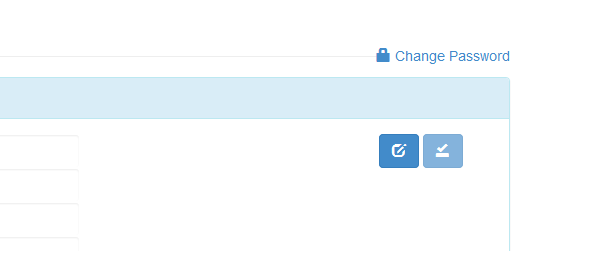
- To change your password proceed to User Profile page.
- Click the Change Password link located at the top-righ portion of your Personal Information.
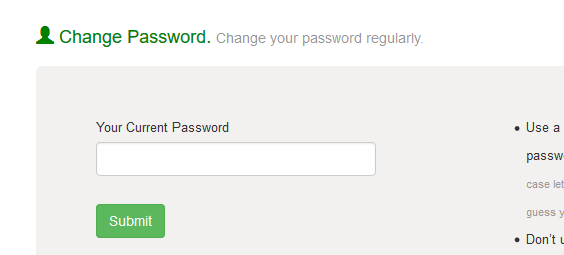
- The next page will ask your current password. Click Submit button.
- Provide now your new password. Click Reset password button.
- A message "Password successfully changed." will appear once you're successful.